Editor Overview
Let’s open the editor!
When you open Godot, the first thing you’ll see is the Project Manager. This is where you can create and manage all your projects.
Make a new project
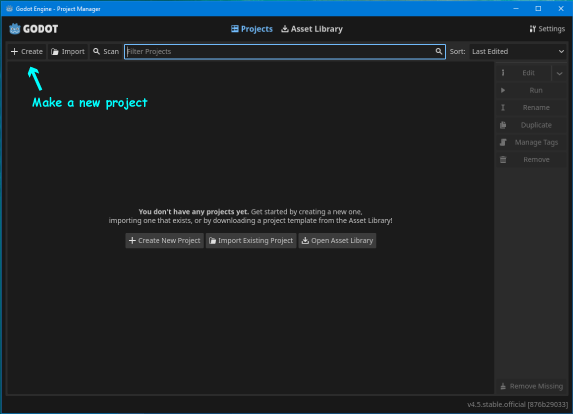
In the Project Manager, click the Create button.
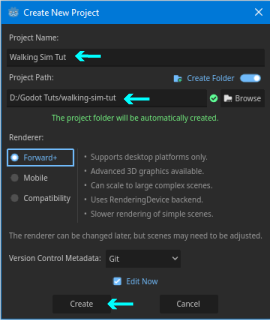
A window will pop up.
Give it a name, for example “Walking Sim Tut”
Then choose a folder to save it, and click Create.
Editor Interface Overview
Now you’ll see this beautiful editor. I’ll quickly mention the main parts of the interface.
You don’t need to remember everything now. You’ll naturally get used to them as you work on your projects.
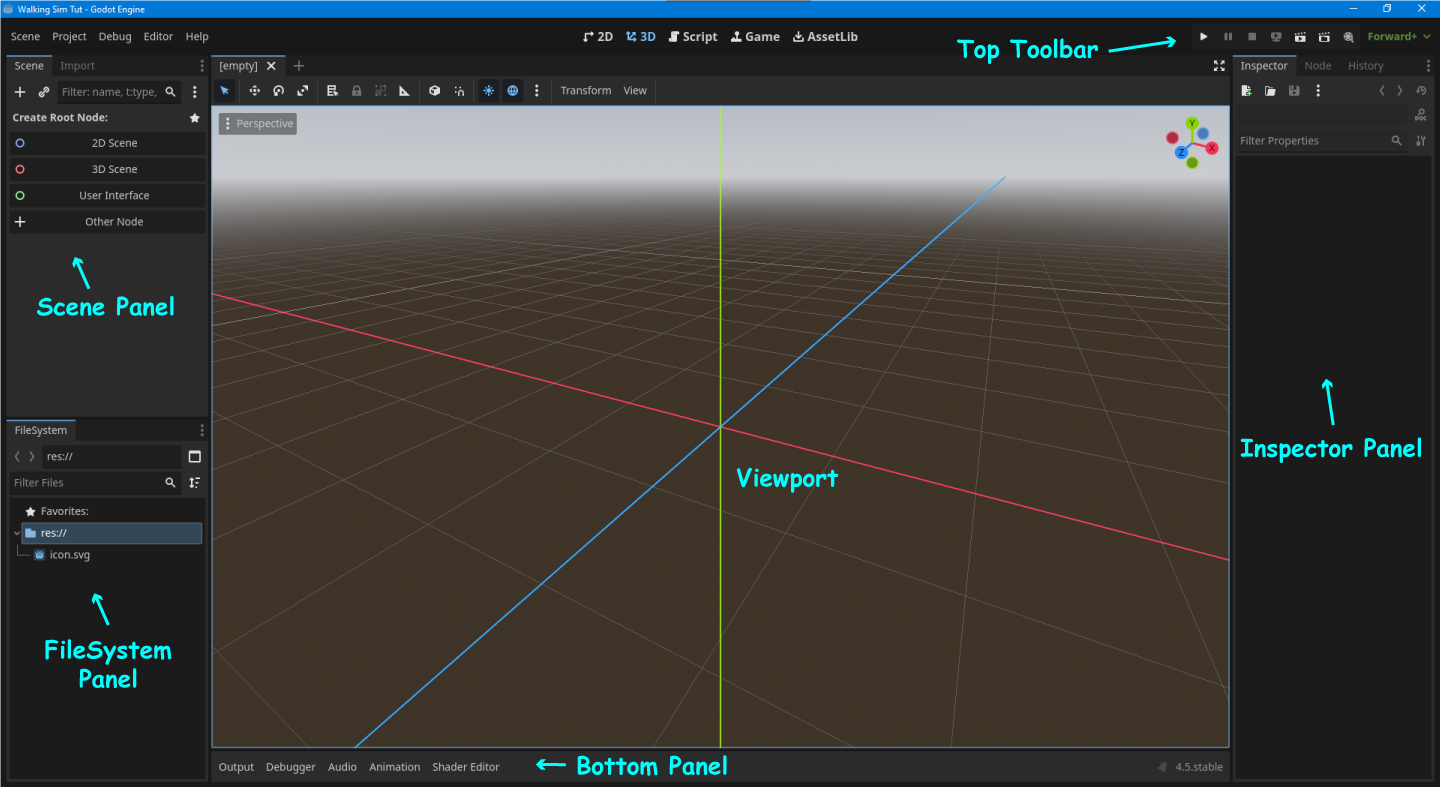
Here are the main areas you’ll see:
- Scene Panel → shows all the nodes in your current scene
- Inspector Panel → shows the properties of the selected node
- FileSystem Panel → where all your project files are stored
- Viewport (Middle Area) → where you build and see your game world
- Top Toolbar → contains play, pause, and tool options
- Bottom Panel → used for output, animation, debugging, and more
There’s a lot going on, but don’t worry. Just focus on the basics for now. You’ll get comfortable with everything naturally as we build together.
Let’s learn by making!
You don’t need to memorize everything right now. Just explore, experiment, and have fun!